



Add overlays to OBS
Add a Bearsong overlay scene to OBS as a browser source, test it, and put chat, quick actions and alerts inside OBS as custom docks.
Live and chatLast updated
Bearsong overlays reach OBS as browser sources, and its tools reach OBS as docks. Build the scene first in the Overlay studio; stream alerts have their own link.
Add a scene to OBS#
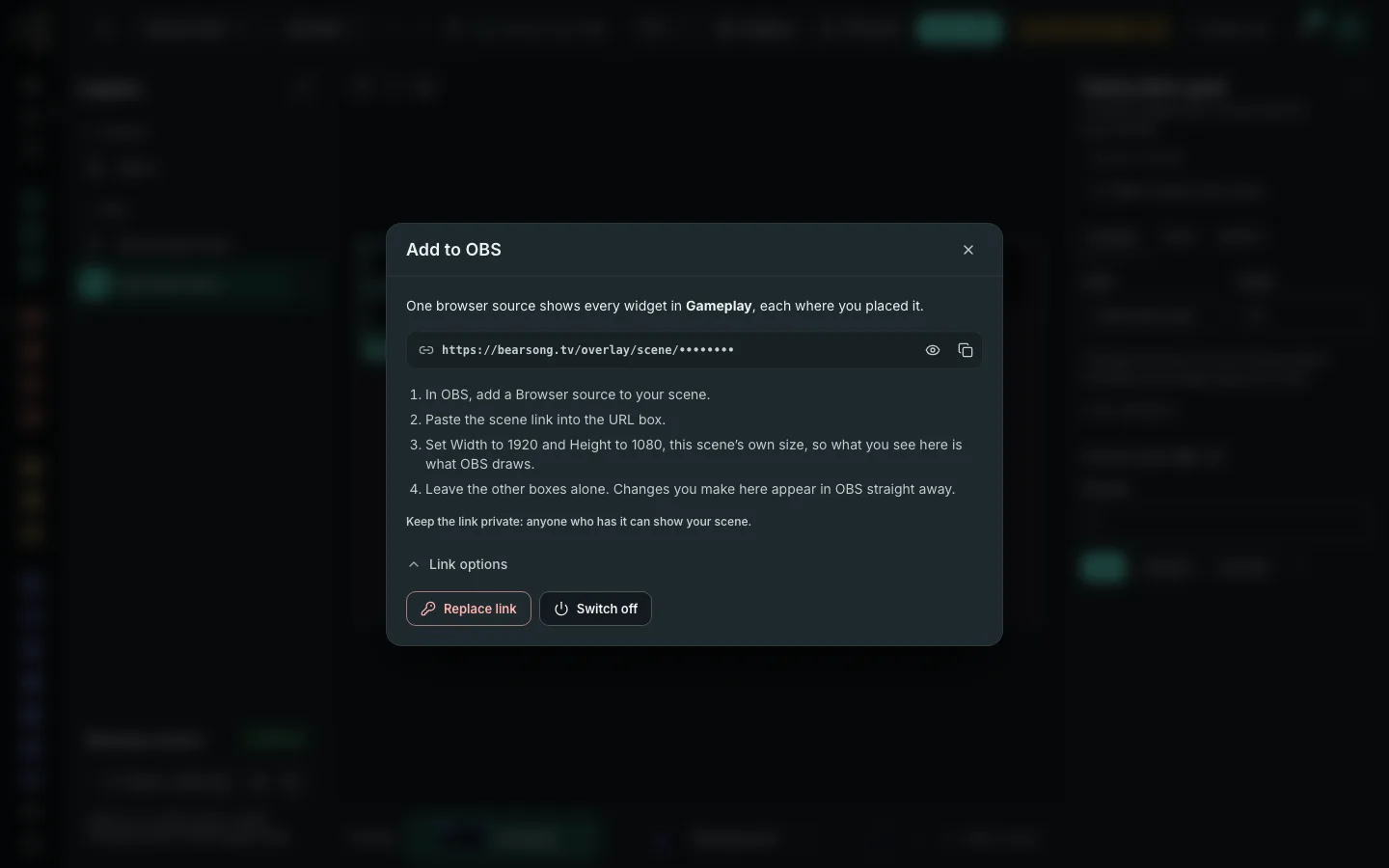
- Choose Add to OBS. The link is hidden until you choose Show, and Copy link sits inside the link field. A scene you made with Start with a ready scene also has its link on the Your scene is ready strip when it opens.
- In OBS, add a Browser source, paste the link and set the width and height to the scene's own size. The card at the foot of Layers is titled Browser source and says: “Add once in OBS at 1920 × 1080. Changes show in OBS straight away.” Your scene's own size replaces 1920 × 1080 when you chose another.
- Check it in your scene. Your changes in the studio appear in OBS straight away.
The card at the foot of Layers says Link on while the link works and Link off after you switch it off. It does not say whether OBS has the source open.
Add compatible third-party widgets to the same scene with a Web page layer.
One link shows the whole scene. Under Link options, Replace link makes a new link: the current one stops working straight away, and OBS shows nothing until you paste the new one. Switch off blanks every OBS source using the link. Links you made for single widgets before the studio keep working. To change a widget during a stream, give it a button in Command Deck.
Test events#
Test event in the header sends a test alert (follow, subscription, cheer, raid and more), a test chat message or event, or plays the Goose Quest sample. A test never starts, stops or changes a widget that viewers can see: to do that, use the buttons under Live controls in the Content tab. The test button at the bottom of the settings panel runs the first test for the selected widget, and is not shown for a widget that has none. On a phone or small tablet, choose a test in the Test event picker, then Send test. You can arrange scenes before you connect Twitch. Until then the studio says so, with a Connect Twitch button, and channel test events wait for the connection.
OBS docks#
Open Overlay studio > OBS docks to put Bearsong tools inside OBS, beside your scenes. An Add a dock in OBS card at the top has the steps. Below it, each dock has a name, what it is for and one address with a Copy address button.
| Dock | What it shows |
|---|---|
| Chat dock | Your Twitch chat on its own, with moderation tools and no menus. |
| Quick actions dock | The action pad: clip, marker, raid, poll and the rest. |
| Held messages dock | Messages AutoMod is holding, ready to allow or deny. |
| Alerts dock | What is playing on stream, with pause, skip and replay. |
| Queues dock | Alerts, polls, new viewers, redemptions, songs and unban requests together. |
| All of Bearsong as a dock | The whole app, so you can change commands and run tools without leaving OBS. |
To add one:
- In OBS, open the Docks menu, then Custom Browser Docks.
- Type a name such as Bearsong chat and paste the address from the page.
- Select Apply. The first time, sign in to Bearsong inside the dock.
The full Bearsong dock needs to be wide enough to show the menu, or sit on a separate monitor. If you added the chat dock before, its older address still works.
Docks need you signed in, but browser sources for overlays do not. Docks are for you, so keep them out of the scenes your viewers see.