



On-screen text
Choose whether text your viewers write can appear on stream in alert messages and the chat box, and review what was hidden.
Live and chatLast updated
Viewers write some of the text that appears on stream: the message on a resubscription, a cheer or a channel point reward, and the lines in the chat box widget. On-screen text is one setting for all of it. Open it from Overlay studio > Alerts, where it has a row of its own under the Will my alerts play? panel. The chat box settings in the studio link to it too.
The lists cover English only. They are a floor, not a promise: a spelling that no rule covers is not caught, and meaning is not judged, so a polite sentence that quotes a slur is hidden like any other.
Choose a level#
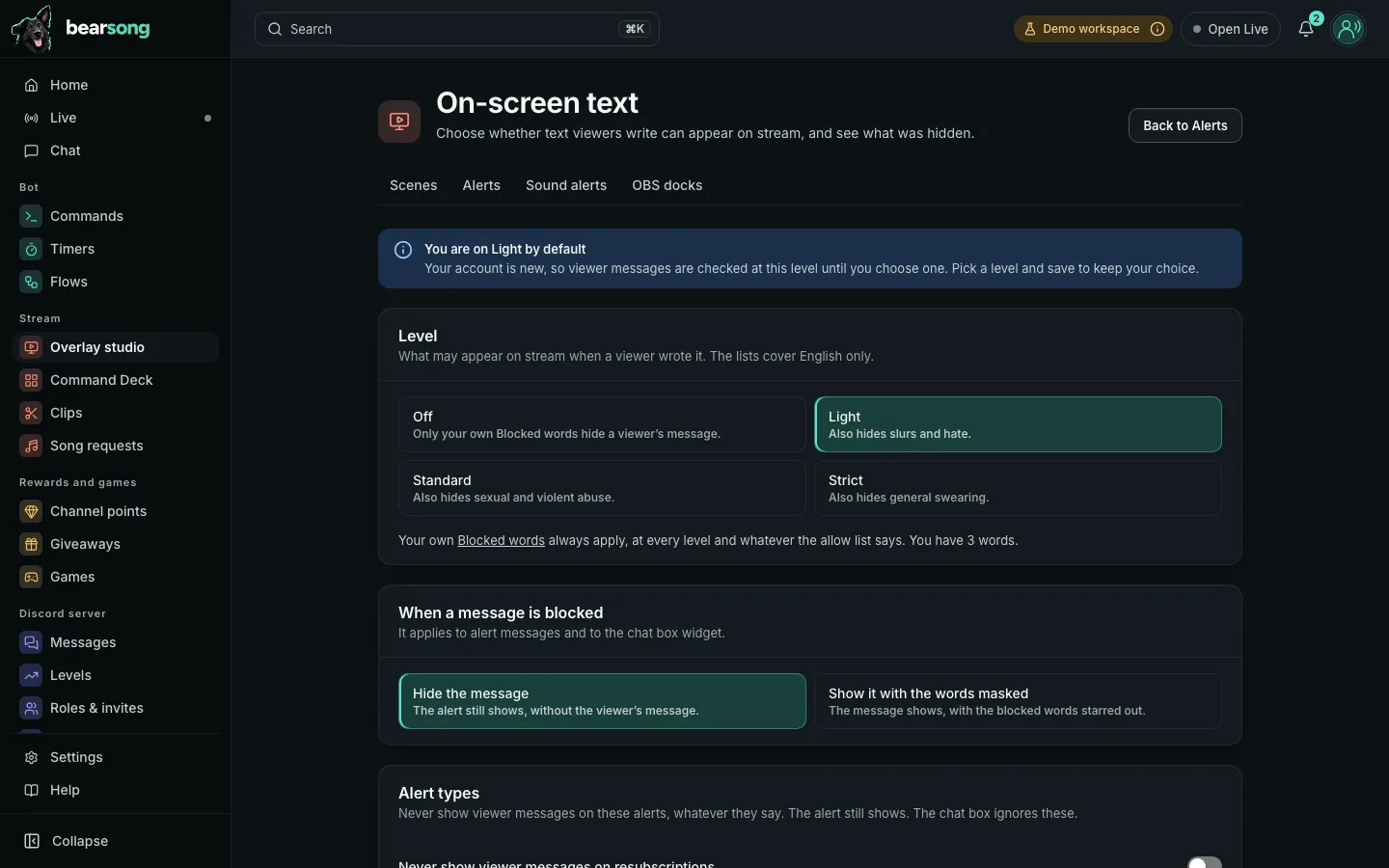
Each level includes the one before it.
- Off: only your own Blocked words hide a viewer’s message.
- Light: also hides slurs and hate.
- Standard: also hides sexual and violent abuse.
- Strict: also hides general swearing.
If you have never chosen a level, the page says so. Accounts that were already here keep today’s behaviour, your own Blocked words only, until you choose a level. A new account starts on Light, shown as Light (default) until you save a choice.
Your own Blocked words, the filter you manage in Spam filters, always apply at every level, including Off, and nothing on this page overrides them. The page shows how many words you have and links to where you manage them.
When a message is blocked#
- Hide the message is the default. The viewer’s message is left out and the alert still shows.
- Show it with the words masked shows the message with the blocked words starred out.
This applies to alert messages and to the chat box widget.
Alert types#
Under Alert types, Never show viewer messages can be switched on for resubscriptions, cheers and channel point rewards. Every viewer message on that alert type is then left out, whatever it says, and the alert still shows. The chat box ignores these switches. A message left out this way is not listed in the hidden messages, because you asked for all of them to go.
Allow list#
A word on the allow list is shown even when your level would hide it. Add one word at a time, up to 40 characters, with no *; the list holds up to 200 words. The allow list overrides the level lists only. It never overrides your own Blocked words.
#
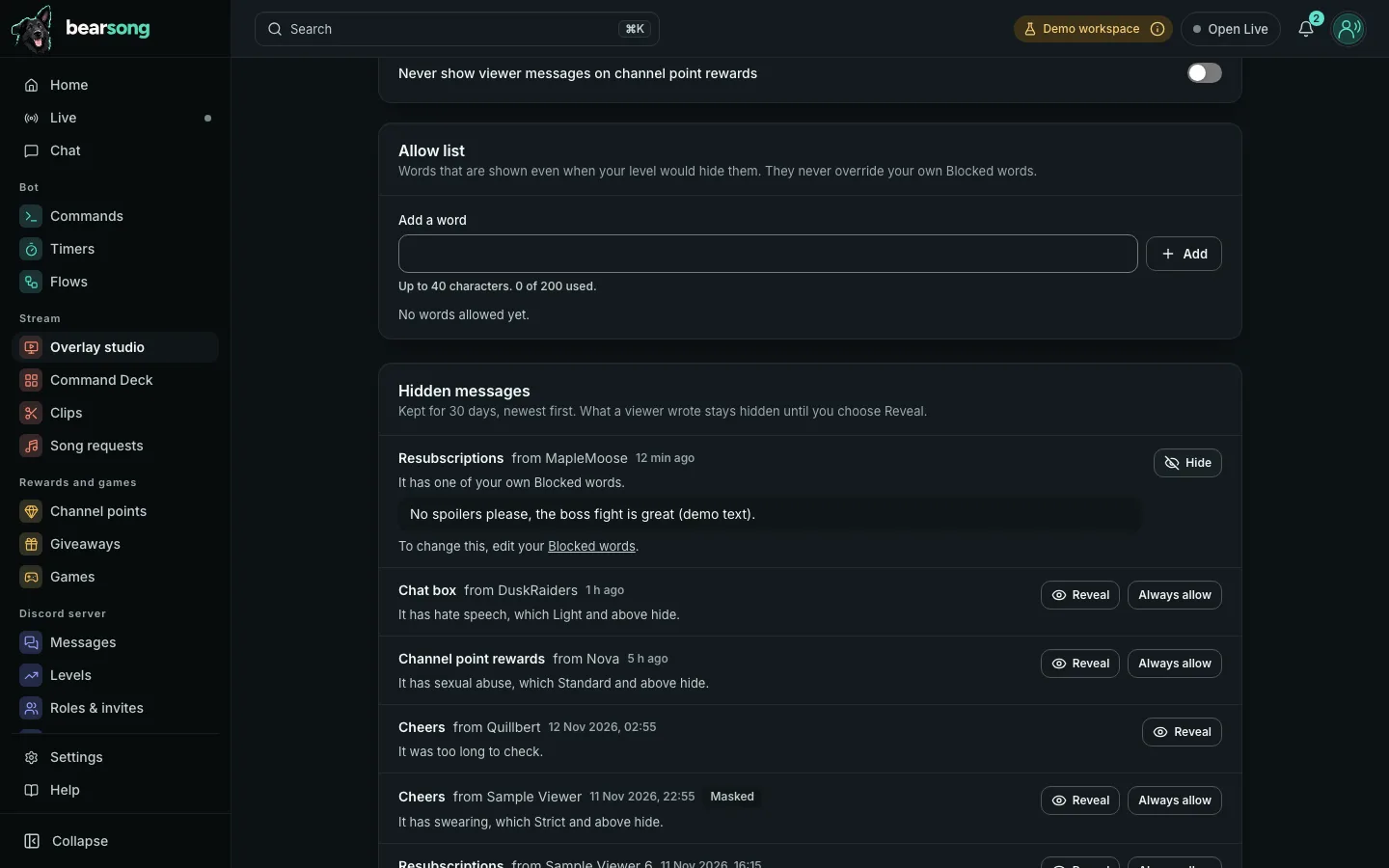
Messages the setting hid are listed for 30 days, newest first. Each row says where it would have appeared (an alert type or the chat box), who wrote it, when, and why in plain words, such as which kind of word a level hides. What the viewer wrote can be offensive, so it is not shown until you choose Reveal, and it is never in a label or a tooltip.
If a level hid a message because of a word you would rather allow, choose Always allow. Bearsong asks you to confirm, then adds the word that hid it to your allow list, so it shows from now on at every level. A message hidden by one of your own Blocked words, or by an alert type switch, cannot be allowed here. Change those where you set them.
If you see no On-screen text row on the Alerts page, the setting is not available for your account yet. Nothing else is affected.