



Stream alerts
Show follows, subs, cheers, raids, rewards, hype trains and shoutouts on stream, give big moments their own alert and check they will play.
Live and chatLast updated
Alerts are the pop-ups that show on stream when someone follows, subscribes, cheers, raids or redeems a channel point reward. Three more types, hype trains, shoutouts you receive and subscription upgrades, are off until you switch them on. Alerts are Twitch only. Subscriptions, resubscriptions, gifts, cheers, raids and subscription upgrades arrive through the Twitch bot today, so switch it on for those.
Open Overlay studio > Alerts to show follows, subs, cheers, raids and reward redemptions on stream, one at a time.
Set up alerts#
- In the Will my alerts play? panel, under Browser source, choose Show if you want to see the link, then choose Copy link. One link covers every alert.
- In OBS, add a Browser source, paste the link and set the width to 1920 and the height to 1080. Alerts appear at the bottom of the scene.
- Under Alert types, switch on the alerts you want. The three types under More alert types start switched off.
- Choose Test beside an alert type to see it on stream.
Check that your alerts will play#
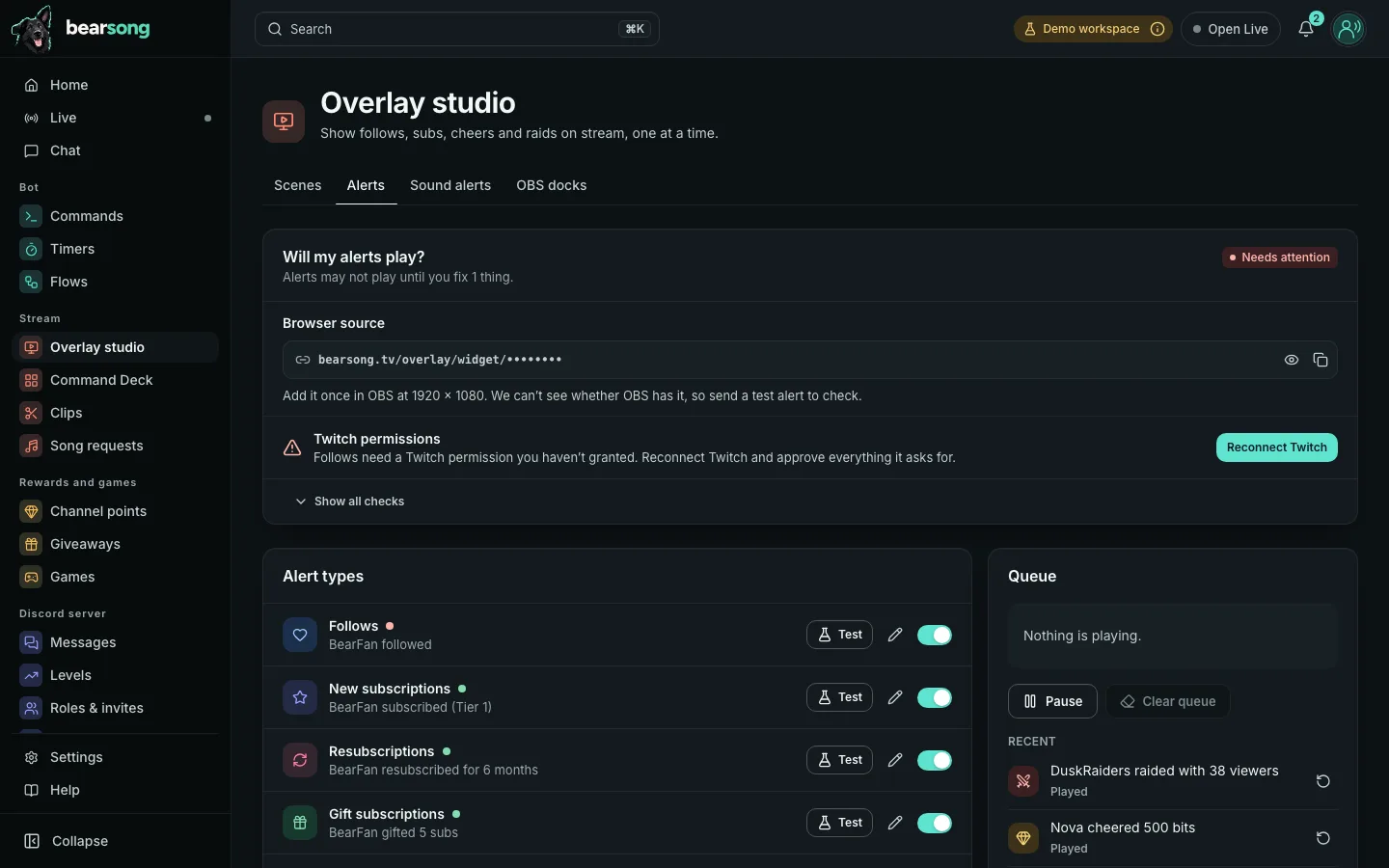
The Will my alerts play? panel at the top of Overlay studio > Alerts says Ready, Needs attention or Not set up. When something is wrong it lists only that, says which alert types it affects, and gives you the button that fixes it.
- Twitch account. Alerts come from Twitch, so Twitch must be connected. If Twitch stopped accepting the connection, choose Reconnect Twitch.
- Twitch bot. Subscriptions, resubscriptions, gifts, cheers, raids and subscription upgrades arrive through the Twitch bot today. When one of them is on and the bot is off, the panel names those types. Choose Switch on the bot to open its setting. The panel does not ask for the bot when none of the types that are on need it.
- Twitch permissions. Follows, channel point rewards, hype trains and shoutouts each need a Twitch permission, and older connections may not have it. The panel names the alert types affected. Choose Reconnect Twitch and approve everything Twitch asks for.
- Receiving from Twitch. If Bearsong is not receiving an alert type from Twitch right now, or Twitch is not letting Bearsong read it with your saved connection, the panel names the type. Choose Try again, or Reconnect Twitch when the connection is the problem.
- Browser source. If the link is switched off, OBS shows nothing, although alerts still queue. Choose Switch it on in Overlay studio to switch it on again. When everything is ready, Send test alert at the top of the panel plays one.
- Alert types. At least one type must be switched on.
Show all checks lists the rest, including your most recent alert. That one is a guide, because the queue only remembers the last 20.
Each alert type under Alert types has a small dot beside its name. Point at it, or read its label, for the same words the panel uses.
- Green means the type is set up to arrive. For a type that arrives from Twitch it may add when the last one arrived.
- Amber means something needs fixing, but the type still arrives another way. For example, a cheer whose Twitch permission is missing still arrives through the Twitch bot.
- Red means the type is not arriving, and says why.
- Grey means the type is off, or Bearsong could not check it. A type Bearsong could not check is never shown as green.
The panel is amber or red to match: red only when a type is not arriving.
Some things Bearsong cannot see. It cannot tell whether the bot is in your chat right now, or whether OBS has the link open, so those show Not checked. A test alert checks OBS, not Twitch: to check Twitch, ask a friend to follow you. If a check cannot be made at all, the panel says Not fully checked instead of Ready.
Test your alerts#
Choose Test beside an alert type to see it play. When the Alerts layer is in the scene, Test event in the studio top bar can send any alert type too: follow, subscription, resubscription, gift subs, cheer, raid, channel point reward, hype train, shoutout or subscription upgrade. A test alert checks OBS, not Twitch. You can arrange scenes before you connect Twitch, but alerts need Twitch connected to arrive, and some types arrive through the Twitch bot today, so keep it on. The other test events are in Add overlays to OBS.
Choose what each alert says#
Choose an alert type to edit it. Which alert types are on, and their minimums, are set on this page. In the studio, the Alerts layer’s Content tab shows how many of the ten types are on and has an Edit alert types button that opens this page. You can set:
- Message, up to 200 characters. Tap a word under the box to add it.
- A minimum, for the types that have one, so small events do not show.
- Seconds on screen, from 2 to 30. The default is 6.
- Image, optional: paste a secure
httpsaddress for a picture or a GIF. Videos are not supported. Choose Use a link instead to type the address. - Sound, from your sound alerts, a link to a sound file, or no sound, and its Volume, which you set with a slider.
| Alert type | Words you can add | Minimum |
|---|---|---|
| Follows | {user} | None |
| New subscriptions | {user}, {tier} | None |
| Resubscriptions | {user}, {tier}, {months}, {streak}, {message} | Minimum months |
| Gift subscriptions | {user}, {count}, {subs}, {tier} | Minimum gifts |
| Cheers | {user}, {bits}, {message} | Minimum bits |
| Raids | {user}, {viewers} | Minimum viewers |
| Channel point rewards | {user}, {reward}, {cost}, {message} | None |
| Hype trains | {level}, {total}, {pointsText} | None |
| Shoutouts received | {user}, {viewers}, {viewerText} | None |
| Subscription upgrades | {user}, {gifter} | None |
{pointsText} and {viewerText} are the number with its word, such as 4800 points or 1 viewer. When Twitch gives no number they are left out, with the brackets or separator around them, so the default shoutout reads "Shoutout from Friend" instead of "Shoutout from Friend ( viewers)". {gifter} is empty for an upgrade from Prime and for an anonymous gifter.
Viewer messages on stream#
A resubscription, a cheer or a channel point reward can carry a message a viewer wrote. On-screen text decides whether that text may appear: choose a level, choose whether a blocked message is hidden or masked, switch off viewer messages for an alert type, and review what was hidden. It has a row of its own on the Alerts page, under the Will my alerts play? panel. When a message is hidden, the alert still shows without it.
Hype trains, shoutouts and subscription upgrades#
These three types are listed under More alert types, with their switch off. Switch one on to start showing it. None has a minimum. Choose Test beside a type to see it play, whether it is on or not.
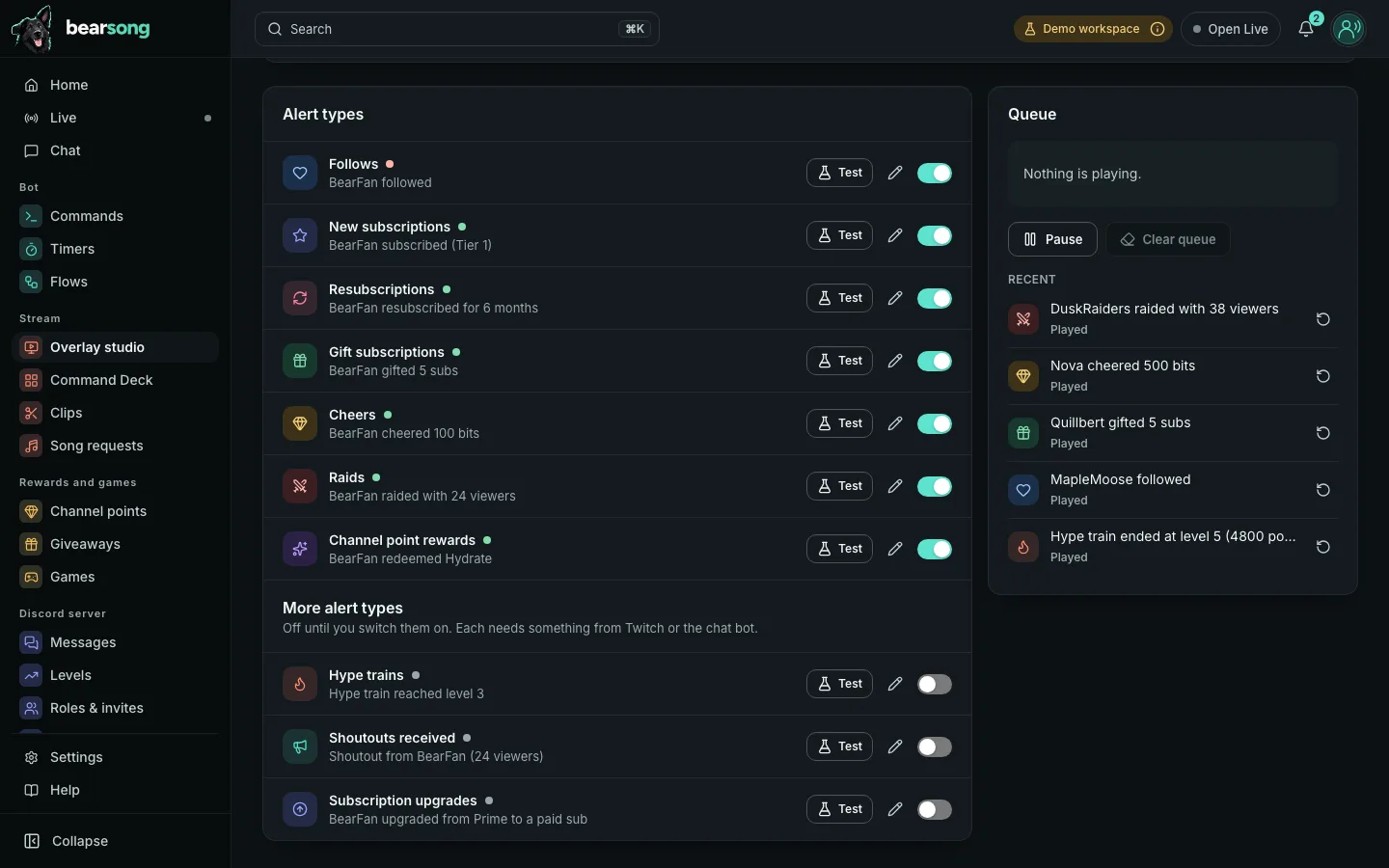
- Hype trains have one message for each step: When it starts, When it levels up and When it ends. Each has its own Test button, so you can see each step. The words are
{level},{total}and{pointsText}. - Shoutouts received have one message, for when another channel shouts you out.
{user}is the channel that sent the shoutout. - Subscription upgrades have one message for Upgrade from Prime and one for Upgrade from a gifted sub, each with its own Test button.
{gifter}is accepted in either message, but it is only filled in for a gifted sub, so it is empty in the Prime message and for an anonymous gifter.
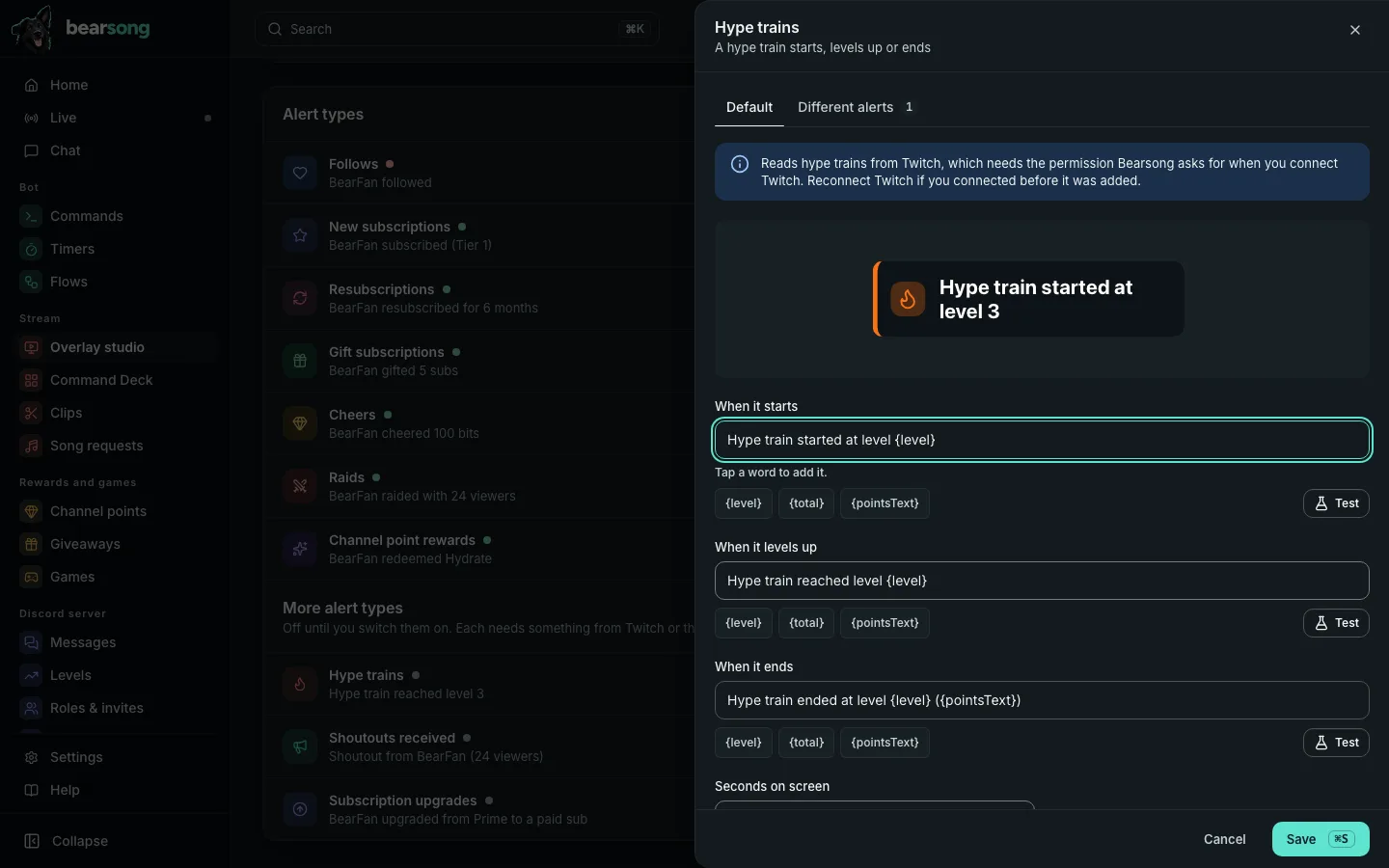
What each type needs, said again in its settings:
- Hype trains and shoutouts are read from Twitch. They need permissions that Bearsong asks for when you connect Twitch. If you connected Twitch before they were added, choose Reconnect Twitch.
- Subscription upgrades arrive over Bearsong’s chat connection through the Twitch bot today, so switch the bot on for your channel.
The Will my alerts play? panel checks these two needs too, once the type is on, and names the type if one is missing. A test alert checks OBS, not Twitch, so a real event is the only full check.
Show a different alert for bigger moments#
Each alert type has two tabs: Default and Different alerts. A different alert has its own message, picture and sound, and shows instead of the default when its conditions match. Choose Add for a ready-made start, or Start from scratch:
- Cheers: 100, 1,000 or 10,000 bits or more.
- New subscriptions: Tier 2, Tier 3 or Prime.
- Gift subscriptions: 5 or 20 gifts or more, and anonymous or named gifters.
- Resubscriptions: 12 months or more.
- Raids: 50 viewers or more.
- Follows: a random extra, which takes turns with your default alert.
- Hype trains: when the train ends, or level 5 or higher.
- Shoutouts received: 100 viewers or more.
- Subscription upgrades: upgrades from a gifted sub.
Hype trains can also be told apart by step (start, level up, end) and by level, shoutouts by the number of viewers, and subscription upgrades by whether they came from Prime or a gifted sub. A different alert with its own message replaces the message for every step or source it covers, so choose the steps or the source it is for.
The list says in plain words when each one shows. You can switch one off, test it, duplicate it, change its order and delete it. A different alert that can never show, because an earlier one covers the same conditions, is flagged.
Give one channel point reward its own alert#
Under Channel point rewards, the Alerts page lists the rewards on your Twitch channel. Choose a reward to give it its own message, picture and sound, or keep the shared alert. Rewards need the Twitch permission shown in the Will my alerts play? panel.
Control the queue#
Alerts play one after another. The queue shows what is playing now, what is up next and what played recently. Use Pause and Resume, Skip the current alert, Clear queue, or replay a recent alert. You can control the same queue from Live or the Alerts dock.